
Hey! I’m sharing a free Blender add-on I’ve been working on: various Maya-inspired functions, selection helpers, and hotkeys, along with a modeling kit toolbar.
It’s free and open source here: github.com/modsoft/blender-modtools
Full details:
Install
Blender 5.2.
Zip this repo and install from Edit → Preferences → Add-ons → Install from Disk. Enable ModTools.
Or clone it into your add-ons folder as modtools:
git clone https://github.com/modsoft/blender-modtools.git modtools
Tools
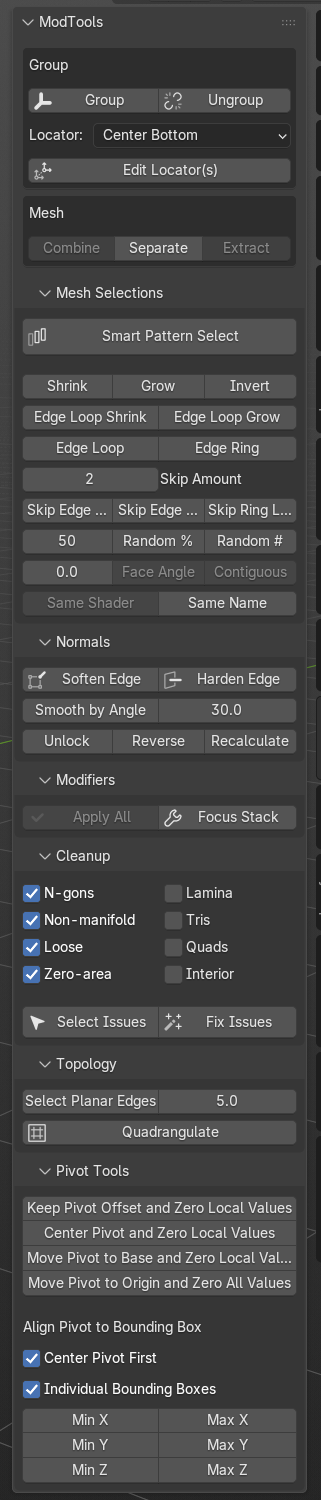
N-panel → ModTools.
- Group / Ungroup — Ctrl+G / Ctrl+Shift+G. Edit Locator moves a group’s Empty without dragging its contents along.
- Mesh — Combine, Separate, Extract
- Mesh Selections — Smart Pattern Select, grow/shrink, loops and rings, skip loop/ring, random, face angle, same shader or name
- Normals — Soften/Harden Edge, Smooth by Angle, Unlock, Reverse, Recalculate
- Modifiers — Apply All, Focus Stack
- Cleanup — select or fix n-gons, non-manifold, loose geometry, zero-area faces and the rest. Works on a component selection, or the whole mesh if nothing is selected.
- Topology — Select Planar Edges, then dissolve with Ctrl+X to un-triangulate. Quadrangulate joins tris back into quads.
- Pivot — zero local values, snap origin to base/center/world, align to bounding box
Buttons grey out when they don’t apply. Hover to see why.
Shortcuts are assigned in Edit → Preferences → Add-ons → ModTools, grouped by section.
Smart Pattern Select
Pick two edges on the same loop or ring, press the button, and the spacing between them repeats along the whole run. Selecting every third edge is two clicks instead of counting your way around.
Changelog
v0.2.3
Hot-fix for some installation paths
v0.2.2
Check for Updates in the add-on preferences. UI refactor
v0.2.0
Mesh Selections section, including Smart Pattern Select. Topology section with Select Planar Edges and Quadrangulate. Cleanup respects a component selection. Buttons grey out based on context. Settings saved in the .blend.
v0.1.0
Initial commit.
License
GPL-3.0. See LICENSE.